How to use Nano Banana Pro for Interiors & Architecture
Learn how to use Nano Banana Pro inside Fenestra to turn 2D plans into spatial interior and architectural visualisations, including top-down and eye-level renders.

Shaun McCallum
November 24, 2025Last week we released Nano Banana Pro (Nano Banana 2) inside Fenestra, and honestly, it’s been one of the most interesting upgrades for architects and interior designers so far.
It’s much better at understanding space, layout and structure - which means it’s finally viable for turning simple 2D plans into convincing, spatially-aware visualisations.
Here’s a quick workflow you can try today:
1. Create a top-down 3D version of your plan
Upload a floor plan and open Conversational Edit.
Select Nano Banana Pro from the model list.
Try this prompt:
Create a top-down 3D rendering of this 2D floor plan. Show furniture in three dimensions. Use timber flooring, a timber deck outside, and tiles in the bathroom. Place everything on a clean white background with soft daylight and long shadows.
You’ll get a top down render that respects the plan layout surprisingly well.
Follow Along in Fenestra
Render with Nano Banana Pro!2. Axonometric from your rendered 3D plan
Continue in Conversational Edit
Try this prompt:
Turn this top down 3D plan rendering into a axonometric illustration on a white background maintaining the style of the home
You’ll get a axonometric you can use to blend between using Seedance 1.0 Lite for any animations like the GIF at the top of the page.
3. Add style & materials with “Add Anything”
If you want to push it further, use Add Anything with a reference interior image.
Prompt example:
Based on this material sample reference, bring the style and colour into this floor plan while keeping the layout intact.
Material references work really well, just ask Nano Banana Pro to apply specific finishes, which is useful for quick visual ideation with clients.
4. Create CAD 2D Illustrations
Nano Banana Pro is great at creating flat 2D block color illustrations. Perfect for when you’re trying to dial back the realism to show a client options and intent without them getting lost in specific details.
Try this prompt:
Turn this image into a cad styled elevation with block color, with all the details of the interior image shown clearly with linework.
This model can do so much more, explore it, it’s fantastic at new camera angles and macro shots, you can learn more about that here
Use Nano Banana Pro!
Start Creating!Related Articles
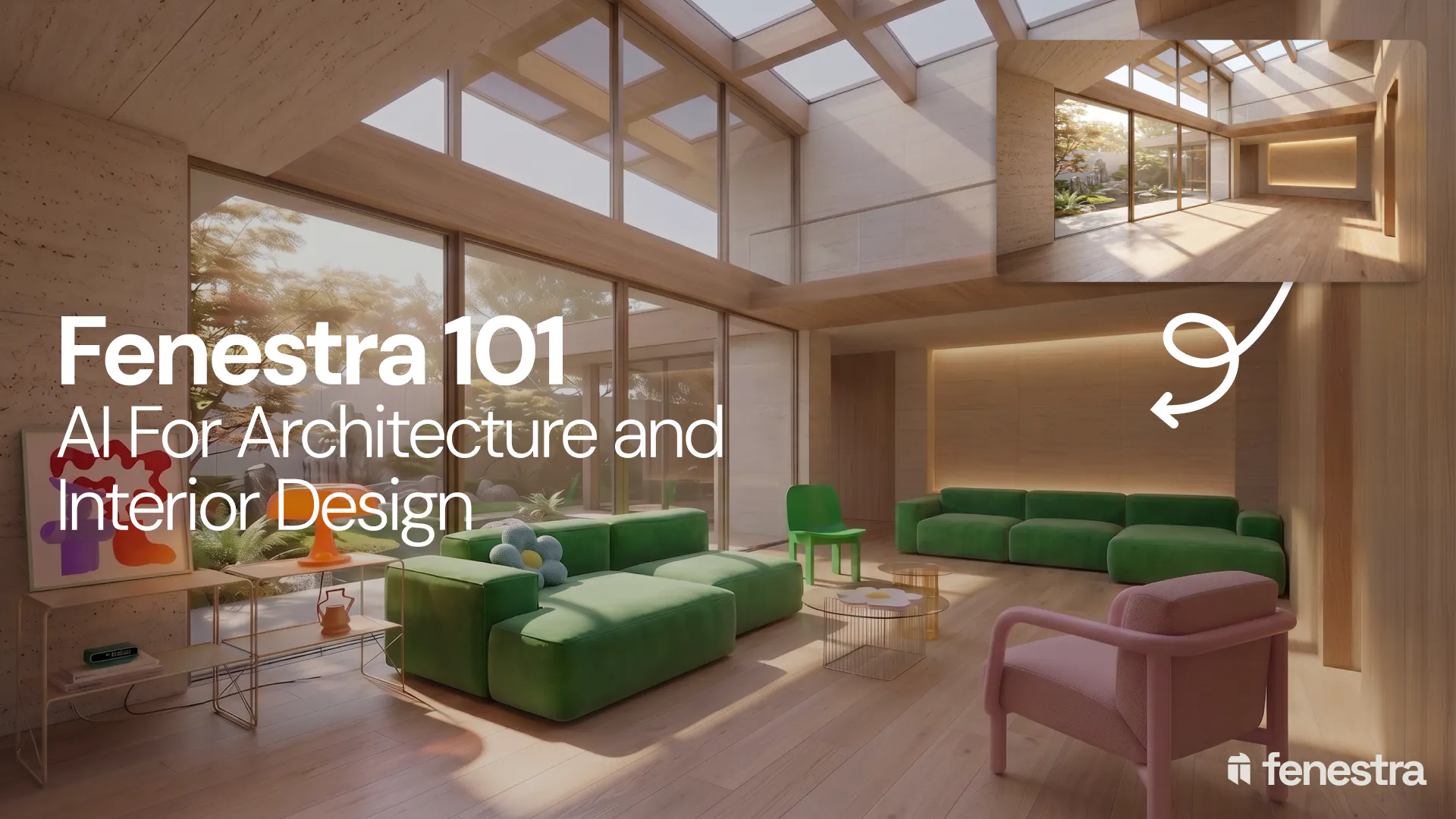
Fenestra 101: Sketch to Render, Virtual Staging and AI Editing for Architects & Interior Designers
In this introductory Fenestra webinar, we walk through the core tools architects and designers can use to turn early ideas into visual concepts. The session covers sketch to render workflows, virtual staging, adding furniture, editing images, removing elements and using AI to quickly explore design directions.
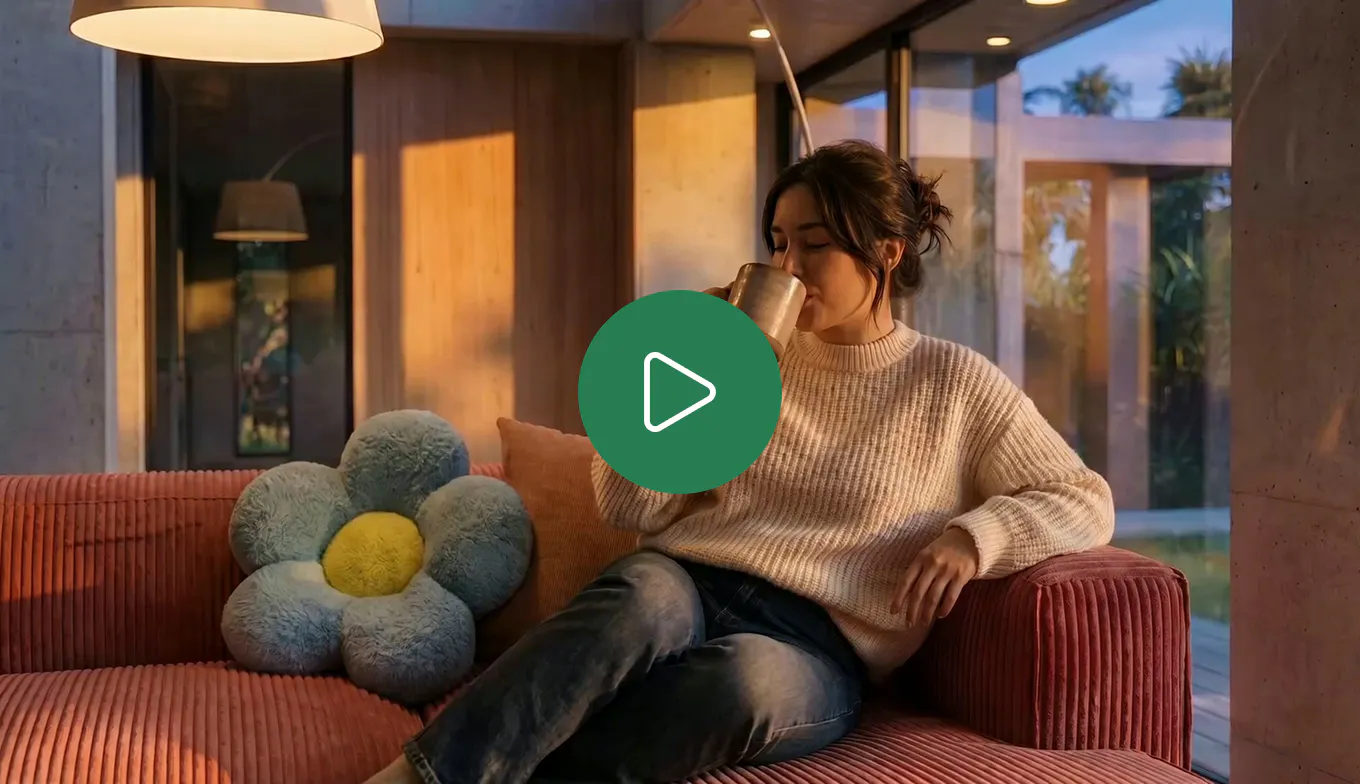
How to Create Interior and Architectural Animations with AI
Turn a single render into a cinematic interior or architectural animation. Use LTX 2.3 and Seedance 2.0 Mini in Fenestra to create walkthroughs, flythroughs and ambient project videos without a 3D model or render farm.
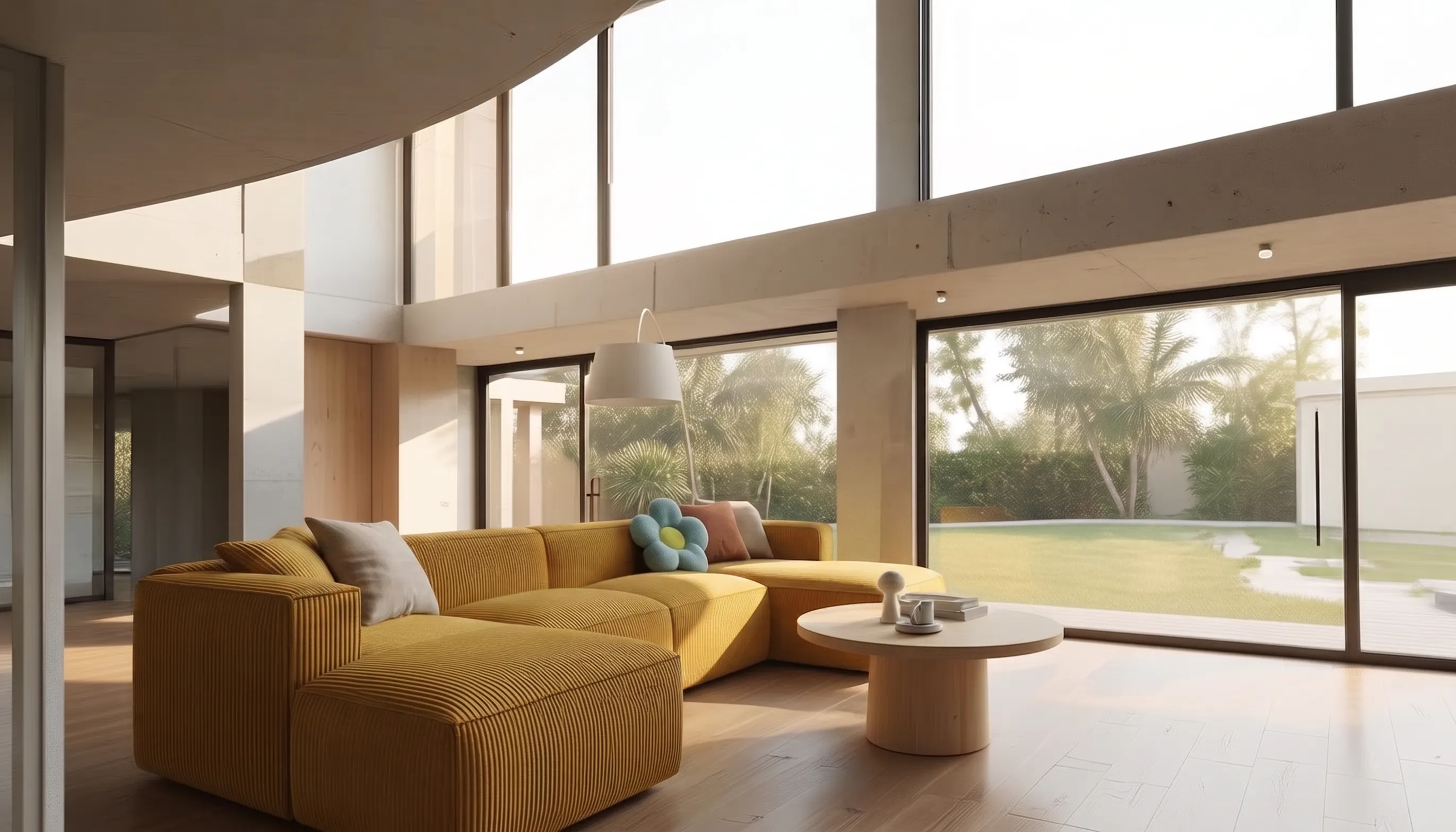
How to Make a Scrolling Website for an Architecture Project
Turn architectural renders and videos into a scrollable project website your client can explore by scrolling.
