How to Create Interior and Architectural Animations with AI
Turn a single render into a cinematic interior or architectural animation. Use LTX 2.3 and Seedance 2.0 Mini in Fenestra to create walkthroughs, flythroughs and ambient project videos without a 3D model or render farm.

Shaun McCallum
June 30, 2026You can now create an architectural animation from a single still render. No 3D model. No camera keyframing. No render farm.
The important part is choosing the right model for the shot. LTX 2.3 Fast, LTX 2.3 Pro and Seedance 2.0 Mini each work slightly differently. Once you understand what each model is best at, it becomes much easier to turn a still image into something that feels like a proper studio presentation.
Upload a render to Fenestra, choose a video model, describe the camera movement you want, and generate a short walkthrough, flythrough or interior animation in minutes.
Here’s how to think about architectural and interior design animation in Fenestra, and how to direct each model.
What is an architectural animation?
An architectural animation is a short video that moves through or around a building, interior or spatial idea.
That could be a slow orbit around a façade, a dolly down a hallway, a pan across a living room, or a soft camera moving through a lobby.
Traditionally, creating this meant building a full 3D model, setting up lighting, keyframing a camera path and waiting for renders. With AI, the starting point can be much simpler. You can upload a single render, photo or sketch, then use the image as the base for the animation.
For architects and interior designers, this makes quick presentation videos much more accessible. Instead of waiting until the end of a project, you can create short animated walkthroughs while you are still testing the atmosphere, composition and feel of a space.
Fenestra now includes three new video models for this workflow.
Choosing the right AI video model
Each model is useful for a slightly different kind of architectural animation. The right choice depends on whether you need speed, quality, people, or quick exploration.
LTX 2.3 Fast: your everyday walkthrough model
LTX 2.3 Fast is the quickest option for creating a clean, high-resolution camera move.
It is a good everyday model for interior animation walkthroughs, exterior flythroughs and simple project videos. Use it when you want to quickly understand how a space might feel in motion, or when you need a polished clip without spending too long testing.
It works best with clear, deliberate movement. Think slow push-ins, gentle pans, soft orbits and controlled walkthroughs. You are not trying to make the camera do too much. You are trying to add enough motion that the project feels alive.
One of the strongest parts of LTX 2.3 Fast is audio. You can prompt the model to add ambient background sound, which makes interior walkthroughs feel much more natural. A quiet room tone, soft environmental sound or subtle exterior ambience can make the video feel less like a silent render and more like a cinematic project presentation.
LTX 2.3 Pro: architectural animation with people
LTX 2.3 Pro is the model to use when your architectural animation includes people.
People can add scale, life and atmosphere to a scene, but they also need to be handled carefully. The best results usually come from simple, believable human motion rather than anything too complex.
A few choices help:
Keep movement subtle. A person walking slowly through a space, standing in the background, sitting at a table or moving gently through the frame will usually read better than exaggerated action.
Frame the shot like a cinematographer would. People from behind, at mid-distance or slightly outside the main focal point often look more natural than close-up figures. Avoid putting too much attention on hands, faces or very detailed movement unless the shot really needs it.
This is not about hiding the model. It is about directing the shot properly. Architectural visualization already uses these choices all the time. The goal is to create a video that feels like your studio’s work, not a generic AI clip.
Seedance 2.0 Mini: fast clips for testing ideas
Seedance 2.0 Mini is built for speed.
It renders at 720p, which makes it useful for quick tests, early motion studies and trying out camera ideas before committing to a final video. Use it when you want to see whether a slow zoom, push-in, pan or transition actually works before using one of the higher-resolution models.
One thing to know: Seedance 2.0 Mini treats your end frame as a guide, not a strict target.
It will move toward the second frame or use it as a visual direction, but it may not land exactly where you expect. That is fine for exploration. For final presentation clips where the framing has to be more exact, use LTX 2.3 Fast or LTX 2.3 Pro.
Getting cinematic quality from any AI video model
The model matters, but the way you direct it matters more.
Start with a clean, high-quality render. The clearer the depth, lighting and composition, the easier it is for the video model to understand the space. Keep the camera move simple. A slow orbit, controlled dolly or gentle pan will usually look more architectural than a busy camera path.
Avoid asking the model to solve too many hard problems at once. Fast human motion, close-up hands, complex reflections and extreme camera moves can all reduce quality. Use audio when it helps. Ambient sound can make a short interior walkthrough feel much more finished, especially for client presentations, social clips or project teasers.
The best AI architectural animations still come from good direction. The model gives you motion, but you decide the shot.
Start animating
Upload a render and bring it to life in Fenestra.
Use LTX 2.3 Fast for everyday walkthroughs, LTX 2.3 Pro for scenes with people, and Seedance 2.0 Mini when you want to quickly test a camera idea.
Try the AI architectural animation generator, or read more about creating AI video for interior design and architecture.
Bring your Projects to life
Animate Your DesignsRelated Articles
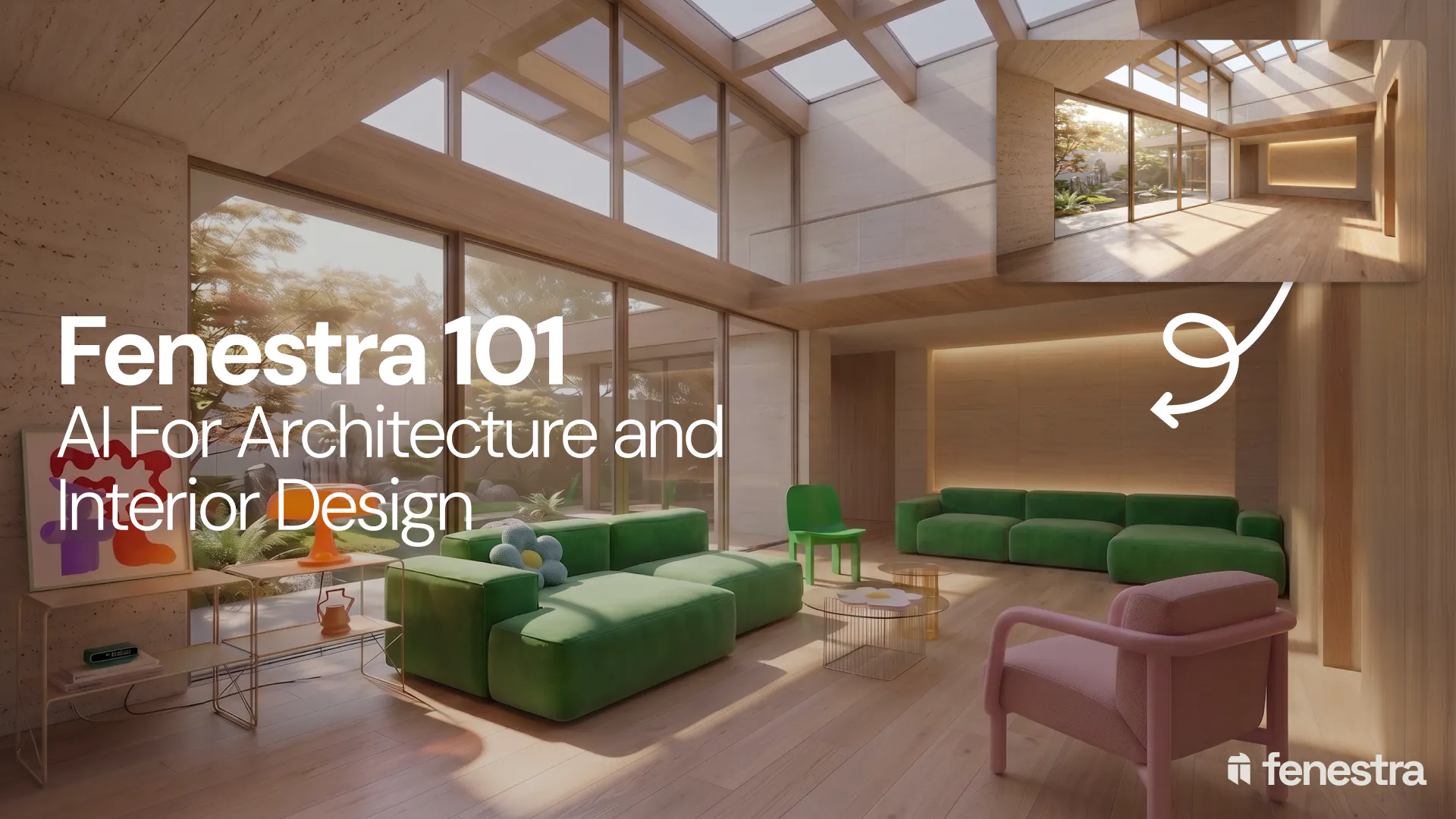
Fenestra 101: Sketch to Render, Virtual Staging and AI Editing for Architects & Interior Designers
In this introductory Fenestra webinar, we walk through the core tools architects and designers can use to turn early ideas into visual concepts. The session covers sketch to render workflows, virtual staging, adding furniture, editing images, removing elements and using AI to quickly explore design directions.
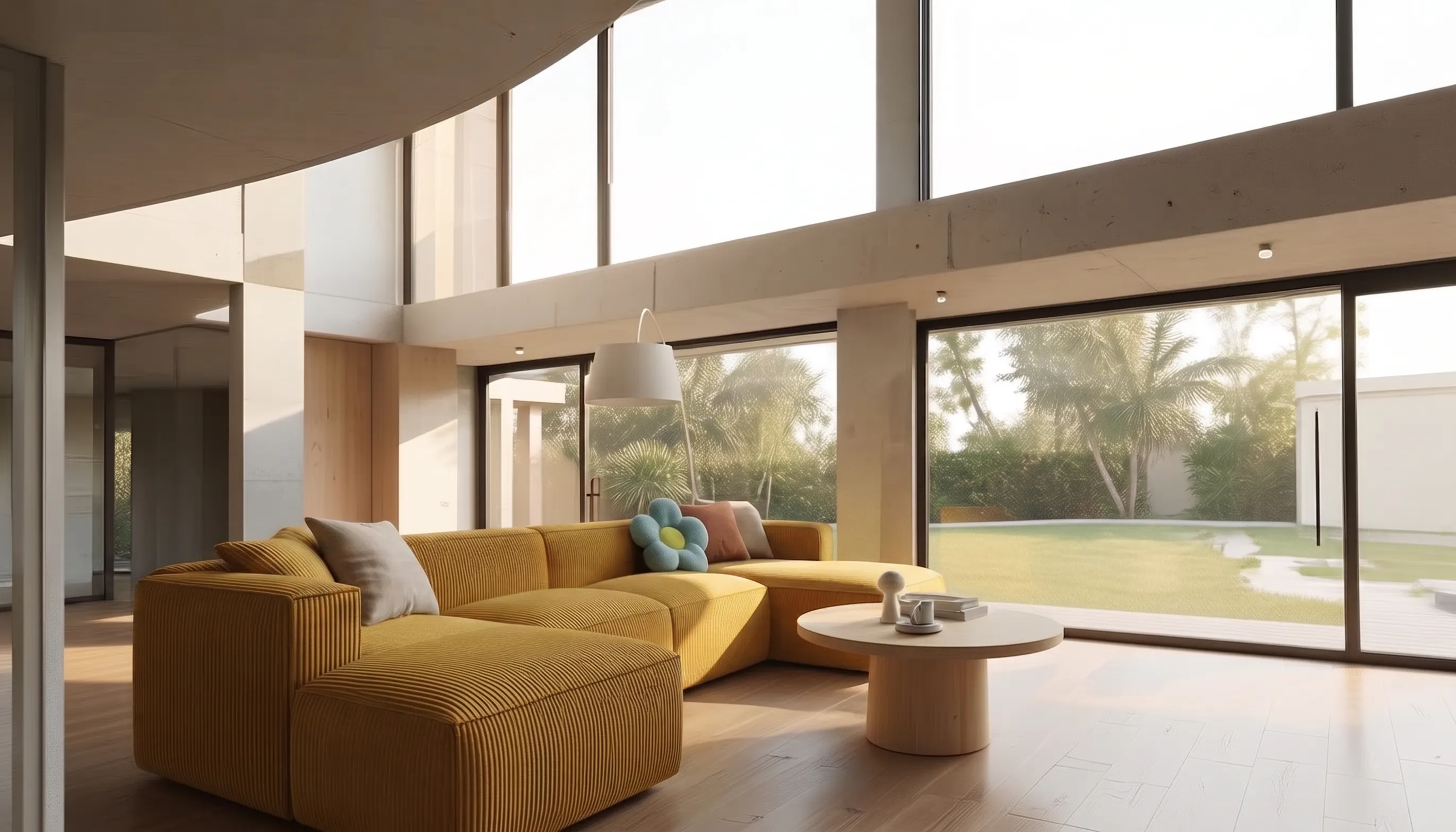
How to Make a Scrolling Website for an Architecture Project
Turn architectural renders and videos into a scrollable project website your client can explore by scrolling.
Fenestra 101: Our First Webinar
We're running our first ever live webinar on June 3rd. A hands-on intro to Fenestra for architects and interior designers, covering image generation from prompts, 2D and 3D inputs, video, and where AI actually fits in your practice. 30 seats only.
