How to Create Consistent Illustrated Views of Your Project in Fenestra
Illustration workflow for architects and interior designers using Qwen Image Edit Plus. Produce fast, accurate stylised renders including cel shading, anime styles and high fidelity concept design images.

Shaun McCallum
December 1, 2025We have been busy adding new features to help you get more out of Fenestra, and more video tutorials are on the way! This week we introduced a new Illustration Workflow powered by Qwen Image Edit Plus. Paired with this cel-shaded, illustration style, it produces high quality stylised illustrations in seconds. The style should stay consistent across multiple views, which makes it ideal for full project sets!
Here is how to use it:
1. Select the “Illustrate” workflow
Fenestra will automatically:
- load the correct model (Qwen Image Edit Plus)
- apply the default illustration style
- set up everything for a clean cel-shaded look
Neutral anime outlines, painterly colour, and consistent style results every time - similar to how you can use stylised architecture and interior prompts with Nano Banana Pro in Fenestra.
Explore Yourself
Start Illustrating2. Upload any image you want to stylise
It works across:
- exterior shots
- interior design views (great for quick concept iterations)
- people and context images
- existing renders, sketches or plans
You’ll get a stylised version in just a few seconds.
3. Add a prompt to guide the transformation
Presets work well but you can push the look further with a simple prompt, the same way you can with Nano Banana in Conversational Edit. Add your architectural / interior prompts to help transform your image. This means if you want a night illustration you can skip the step of making it with another workflow and directly tell the Illustrate workflow that it's night time.
Examples:
- "Convert this morning exterior into a night-time illustration.”
- “Turn this interior into a cel-shaded vibrant anime scene.”
No need to first create a correct lighting version. The workflow should handle it for you!
4. Use the same style across multiple views
Because the style is consistent, you can quickly create a coherent set of stylised visuals for:
- presentations
- concept packs
- competitions
- client storytelling
Useful for creating illustrative looks across any interior or exterior design project give it a go and see what you can create.
If you have a style you want to see added or if you want to develop a custom in house look for your studio, reach out!
Illustrate Any Image
Start Creating!Related Articles
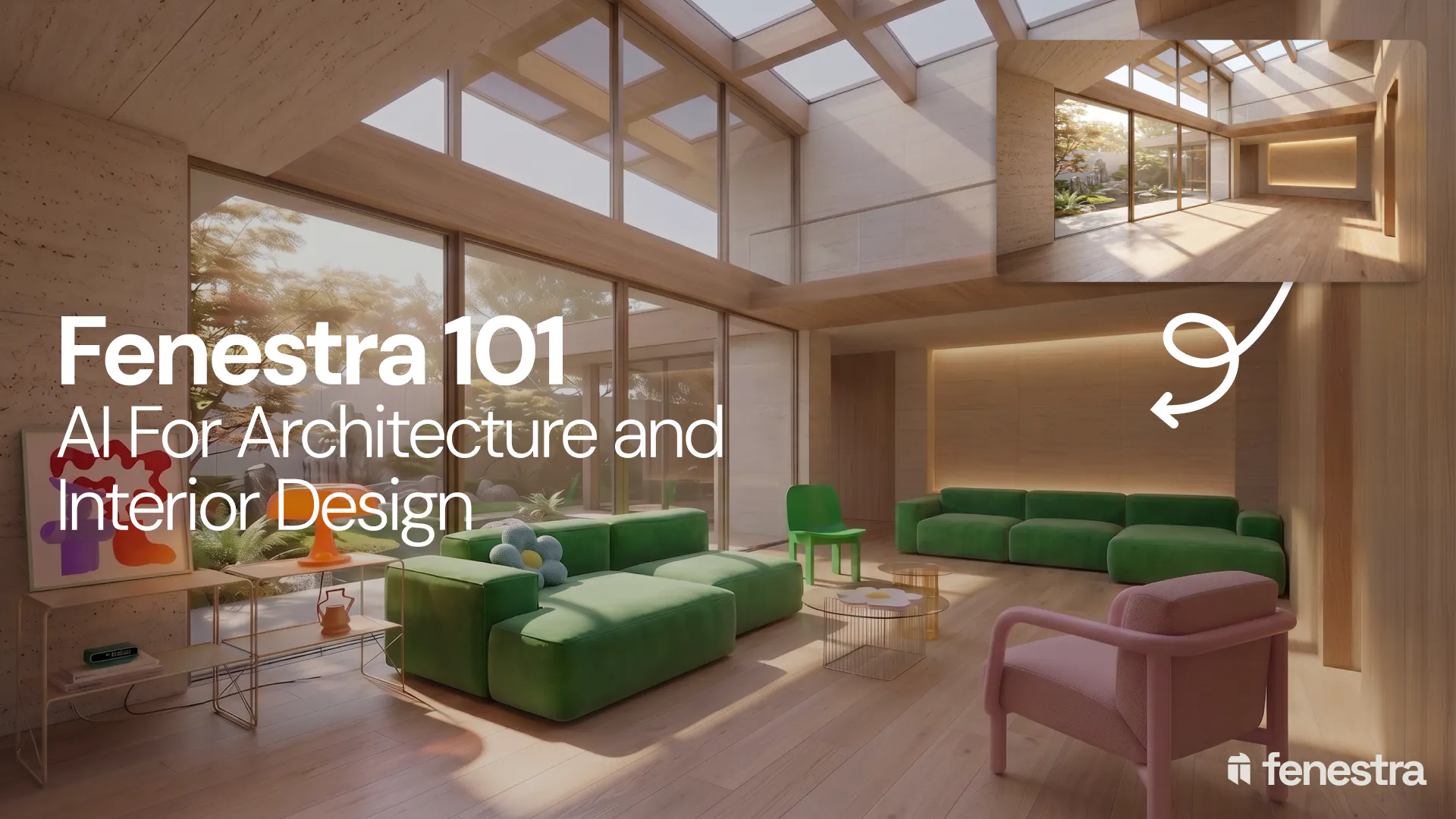
Fenestra 101: Sketch to Render, Virtual Staging and AI Editing for Architects & Interior Designers
In this introductory Fenestra webinar, we walk through the core tools architects and designers can use to turn early ideas into visual concepts. The session covers sketch to render workflows, virtual staging, adding furniture, editing images, removing elements and using AI to quickly explore design directions.
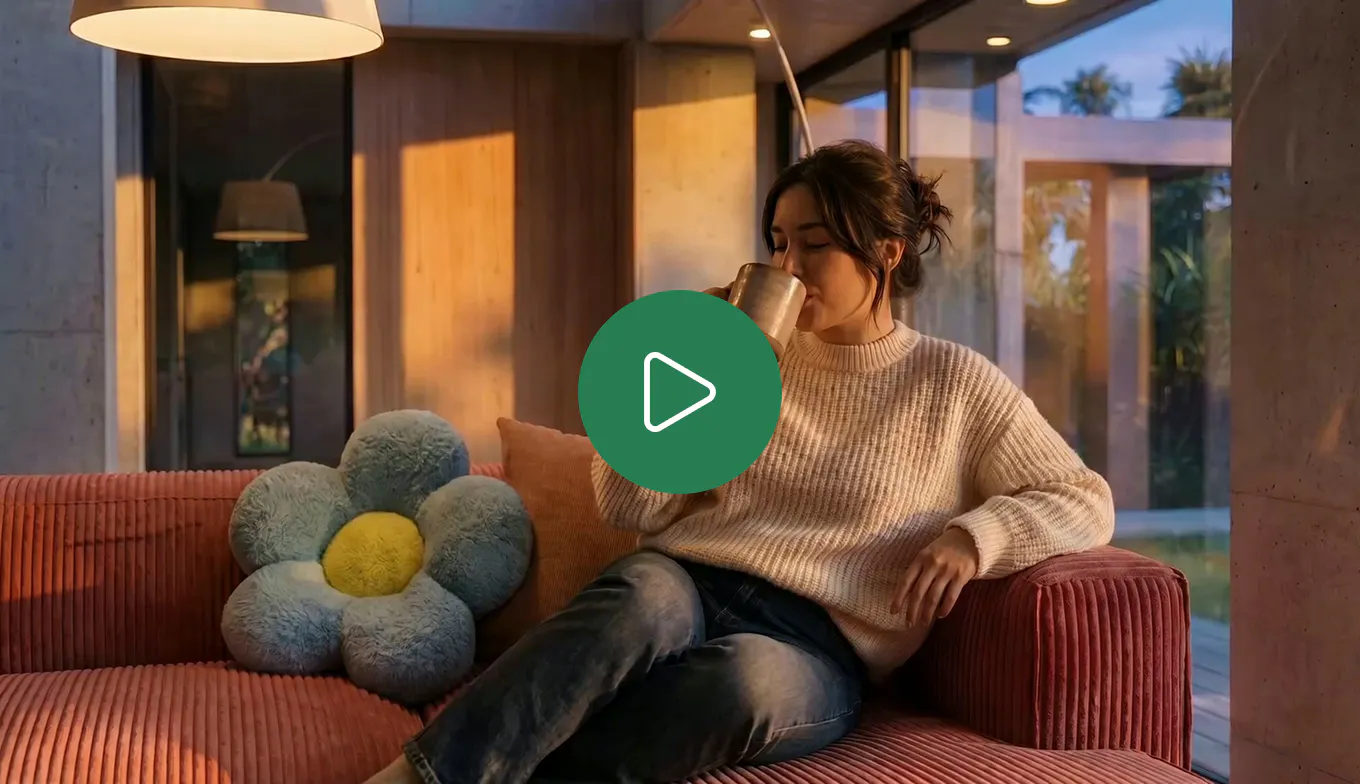
How to Create Interior and Architectural Animations with AI
Turn a single render into a cinematic interior or architectural animation. Use LTX 2.3 and Seedance 2.0 Mini in Fenestra to create walkthroughs, flythroughs and ambient project videos without a 3D model or render farm.
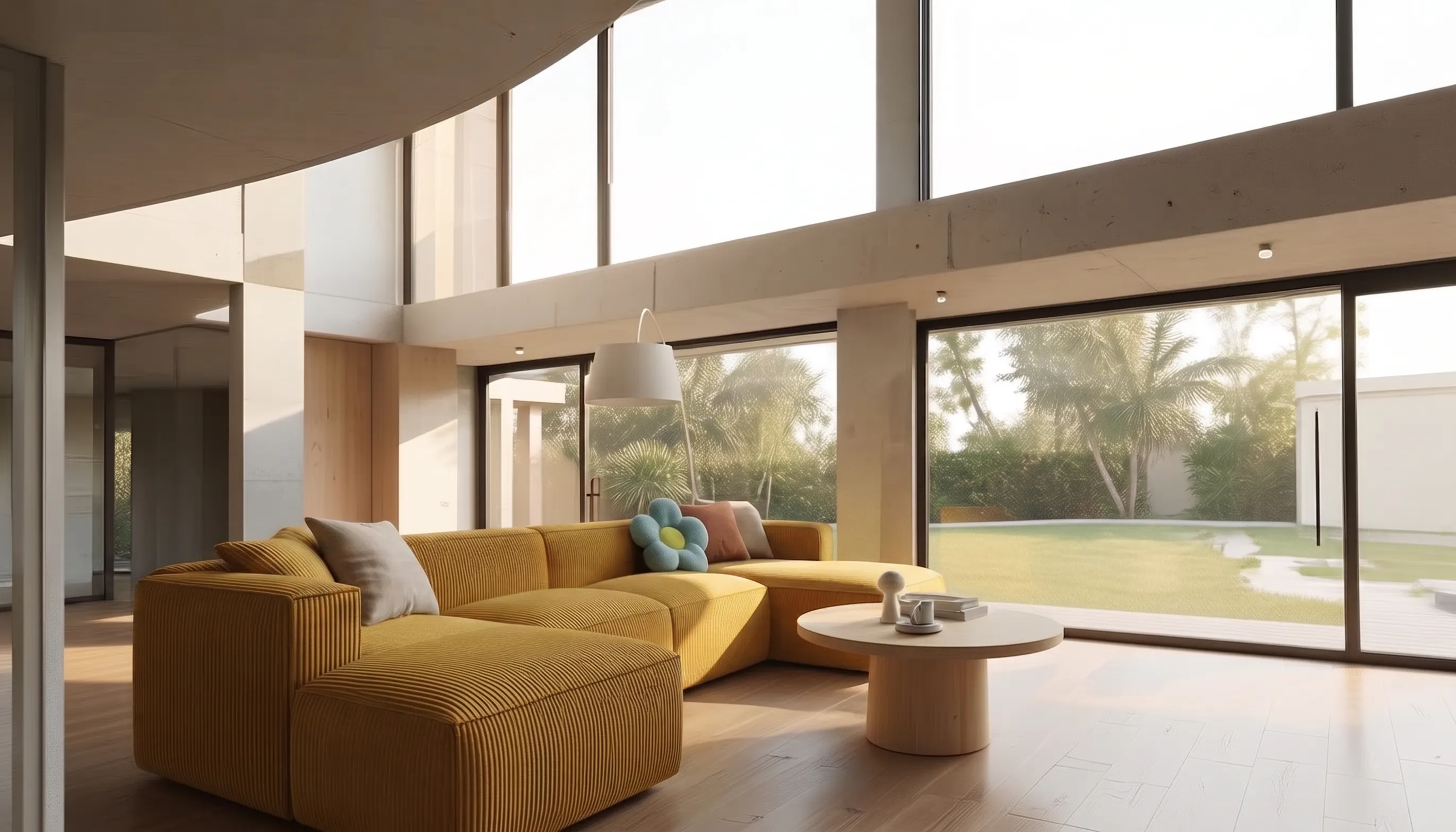
How to Make a Scrolling Website for an Architecture Project
Turn architectural renders and videos into a scrollable project website your client can explore by scrolling.
