Create Consistent Views In Fenestra
Architects still doing it the old way are about to get left behind.

Shaun McCallum
July 7, 2025Using Fenestra’s Edit Tool and the Conversational Edit Workflow, I took a single elevation render and turned it into a complete visual set:
- Perspective
- Aerial
- Axonometric
- Physical model view
- Animated cinematic
All consistent. All editable. All from one base image.
Here’s exactly how I did it — and the prompts you’ll need to replicate it. Please stop buying prompt courses.
1. Upload your image and open Edit Mode
Click the Edit (✏️) icon in the top navigation bar. In this case, I started with a flat elevation Render I created using the Sketch to Image workflow in Fenestra with the Create tool.
2. Create a Dynamic Perspective from a Flat Elevation
In the Edit view, select Conversational Edit from the workflows in the top right.
This is where the magic happens. Be clear and simple with your prompts — tell it exactly what you want.
Here’s what I used:
- “Create a perspective visual of this architecture.”
That’s it. Simple. You might need to try a few times — Flux Kontext has a mind of its own sometimes.
Want to edit a that render? Just add it to your layers first. Remember: whatever’s visible on your canvas is what Fenestra sees and works from.
3. Generate an Aerial View for Site Context
Next, I created an aerial render to show layout and site relationships — perfect for context diagrams or site mockups.
Prompt:
- “Create an aerial top-down view of this architecture in the center of the image.
Flux Kontext reorients the camera, keeps your lighting and materials intact, and delivers a clean, consistent drone-style architectural render — ideal for client decks or animated flyovers.
4. Turn the Image into an Axonometric Drawing
Axo/isometric illustrations are perfect when you’re not ready to go full photoreal. Great for early design phases or client previews.
Prompt:
- “A textured axonometric illustration of this architecture on a white background.”
The result: a stylised, consistent axo with clarity!
5. Animate Your Visuals
Animate your images, it's easy.
Once you've generated your set of images, head to Video Mode to bring them to life. Remember: everything on your canvas is what Fenestra sends to the AI — including aspect ratio.
If you’ve been adding to your layers, you can toggle them on/off or create separate views to manage variations more easily. Animations will queue automatically — no need to wait around.
Use the Animate Cinematic Workflow to add pans, zooms, orbits, or create transitions like day-to-night.
Jump into Fenestra now and start crafting your own architectural story.
Craft Entire Render Sets In Seconds
Try It YourselfRelated Articles
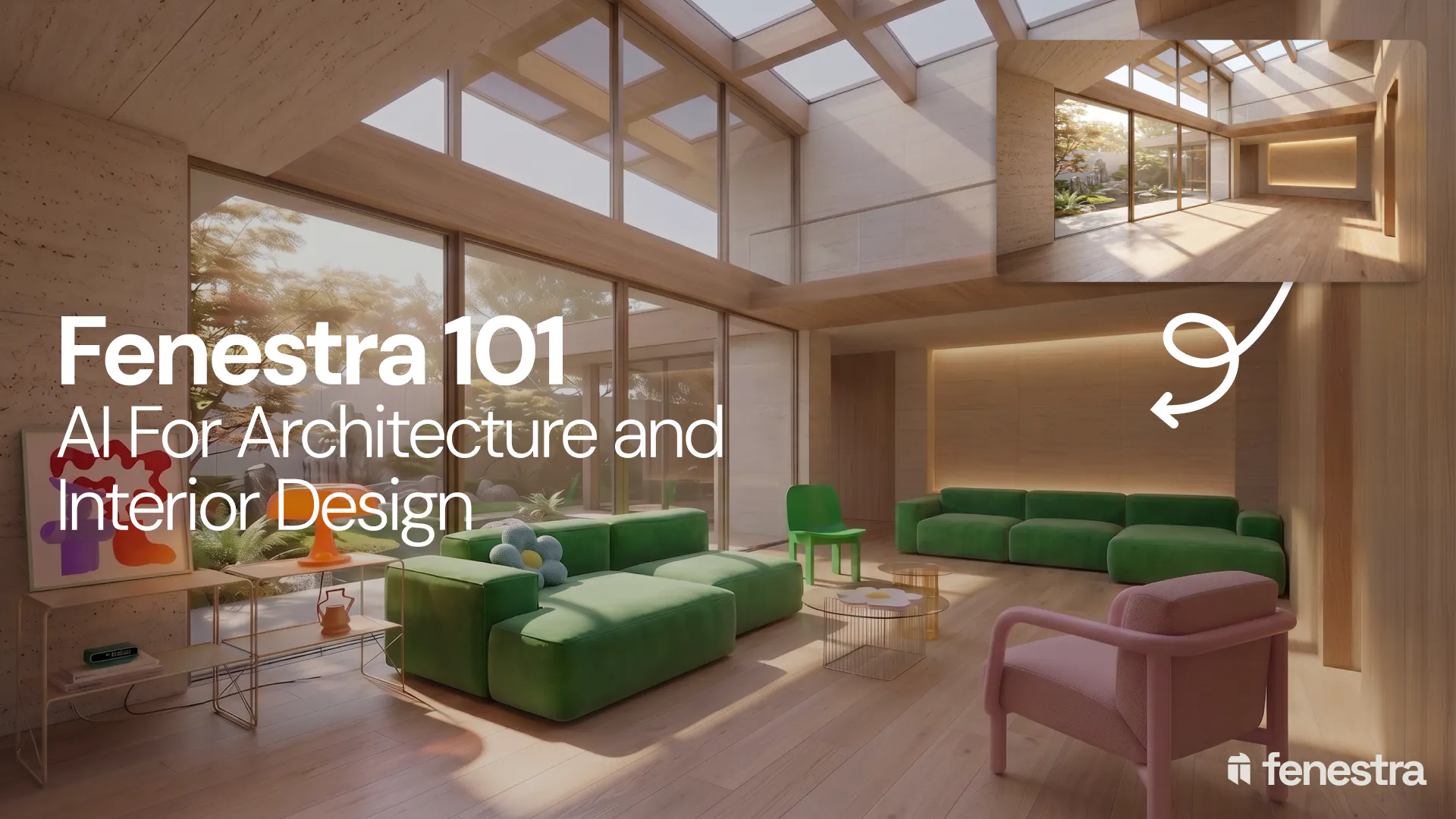
Fenestra 101: Sketch to Render, Virtual Staging and AI Editing for Architects & Interior Designers
In this introductory Fenestra webinar, we walk through the core tools architects and designers can use to turn early ideas into visual concepts. The session covers sketch to render workflows, virtual staging, adding furniture, editing images, removing elements and using AI to quickly explore design directions.
How to Make a Scrolling Website for an Architecture Project
Turn architectural renders and videos into a scrollable project website your client can explore by scrolling.
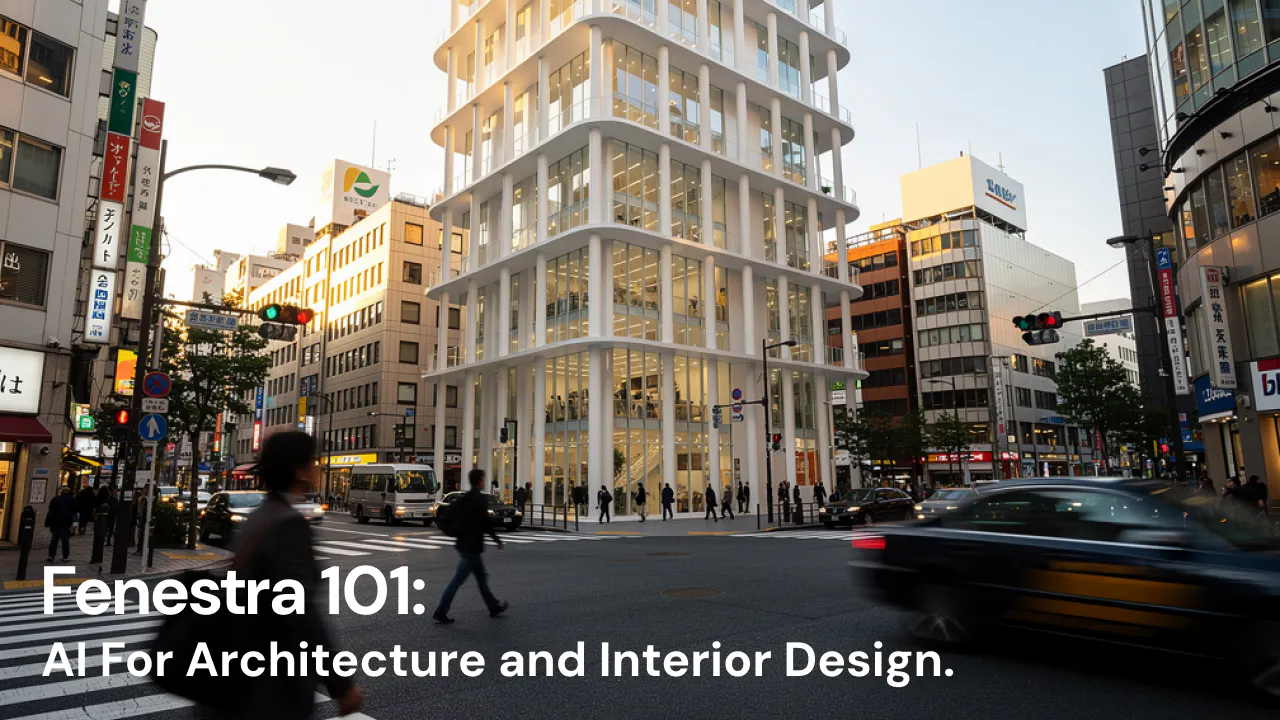
Fenestra 101: Our First Webinar
We're running our first ever live webinar on June 3rd. A hands-on intro to Fenestra for architects and interior designers, covering image generation from prompts, 2D and 3D inputs, video, and where AI actually fits in your practice. 30 seats only.
